
Module 1: Computers and Smartphones for Everyday Use
1.1 What Is a Computer and What Are Its Parts?
What You Will Learn
By the end of this lesson you will be able to explain what a computer is in your own words, name the main parts of a desktop computer and a laptop, and identify common ports and buttons so that you can set up and use a computer with confidence at home, at college, or in a small business.
What Is a Computer?
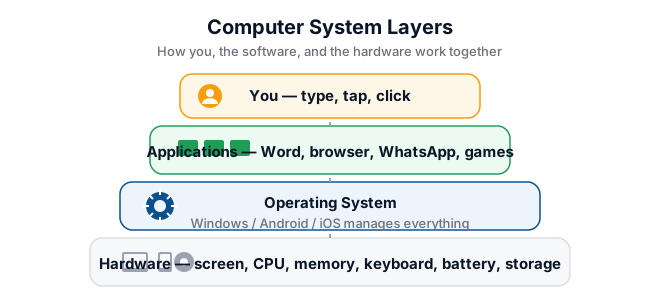
A computer is an electronic machine that takes in information, processes it according to instructions, and produces a result. You already use computers every day, even if you do not realise it. An Android smartphone is a computer. The ATM at the bank is a computer. The point-of-sale machine in a shop that accepts Airtel Money or MTN MoMo is also a computer. Even the digital ZESCO prepaid meter on your wall contains a small computer.
Computers help us write documents, keep records, send messages, browse the internet, watch videos, and run businesses. A market stall owner in Soweto Market who tracks stock in a notebook can do the same task faster and more accurately with a computer. A parent in Kalomo who wants to email a teacher can do so from a college computer or a smartphone.
The Main Parts of a Computer
Most computers have the same basic parts, whether they are large desktops in an office or small laptops carried to class. Understanding these parts will help you talk to technicians, buy the right equipment, and fix simple problems yourself.
The Monitor
The monitor is the screen. It displays pictures, words, and videos. Some monitors are separate boxes that sit on a desk; others are built into a laptop lid. If the screen is black, check that the monitor is turned on and that the cable connecting it to the computer is secure. During load-shedding, remember that a monitor needs electricity just like any other appliance, so an uninterruptible power supply or a charged laptop battery can keep you working.
The Keyboard
The keyboard is the panel of buttons with letters, numbers, and symbols. You use it to type emails, essays, and search terms. The most common layout is called QWERTY, named after the first six letter keys on the top row. If you plan to type in local Zambian languages, the standard keyboard still works, but you may need to learn a few extra key combinations or use on-screen tools.
The Mouse
The mouse is the handheld device that moves a small arrow, called the cursor or pointer, across the screen. You click to select things, double-click to open them, and right-click to see extra options. On a laptop, the touchpad below the keyboard does the same job. If your mouse stops working, check that the USB receiver is plugged in or that the batteries are not flat.
The CPU
The CPU, or Central Processing Unit, is often called the brain of the computer. It sits inside a box on or under the desk, or inside the laptop casing. You cannot see it easily, but it performs the calculations and follows the instructions that make everything work. A faster CPU means the computer can run more programs at once without slowing down. For basic tasks like word processing and browsing, a modest CPU is perfectly adequate.
Other Important Parts
- Speakers produce sound. They may be built into the monitor or laptop, or they may be separate boxes.
- The hard drive or SSD stores your files, programs, and operating system even when the power is off.
- RAM is temporary memory that helps the computer work quickly while it is turned on. More RAM usually means smoother multitasking.
- USB ports are small rectangular slots where you plug in flash drives, mice, keyboards, and phone chargers.
Worked Example: Setting Up a College Computer
Imagine you arrive at Edutrack Computer Training College and sit down at a desktop computer. Follow these steps to get started:
- Press the power button on the front of the CPU box. You should hear a gentle whir and see lights appear.
- Wait for the Windows desktop to load. This may take one or two minutes.
- Check that the monitor is on. If it says "No Signal," make sure the cable at the back is pushed in firmly.
- Move the mouse and watch the cursor respond. If nothing happens, check that the USB plug is seated properly.
- Open the on-screen keyboard or a text editor and type a few words to confirm the keyboard is working.
Try It Yourself
- Look at the computer in front of you. Point to the monitor, the keyboard, the mouse, and the CPU box.
- Count how many USB ports you can see on the front and back of the CPU box or on the sides of the laptop.
- Find the power button on both the monitor and the CPU box. Practice turning the computer on and off safely using the Start menu: click Start, then the Power icon, then Shut down.
- Draw a simple diagram of a desktop computer and label each part. Show it to a classmate and explain what each part does.
Key Terms
- Monitor — the screen that displays images and text from the computer.
- CPU — the Central Processing Unit; the electronic brain that carries out instructions.
- Cursor / Pointer — the arrow on the screen that you control with the mouse or touchpad.
- USB port — a slot on the computer for connecting external devices such as flash drives and mice.
- Keyboard — the set of keys used to type letters, numbers, and commands into the computer.
Summary
A computer is an electronic device that processes information to help you work, study, and communicate. The main parts you interact with are the monitor, keyboard, mouse, and CPU. Understanding these components allows you to set up equipment correctly, describe problems to an instructor or technician, and feel more confident whenever you sit in front of a desktop or laptop. Remember that your smartphone is also a computer, so the same logical thinking applies there too.