
Module 1: PC Hardware Essentials and Safe Hands-On Practice
1.1 Opening a Computer Safely and Identifying Parts
What You Will Learn
By the end of this lesson you will be able to shut down and unplug a desktop computer safely, remove the side panel without damaging anything, name the major parts inside the case, and explain why safety rules matter when you are working on customer equipment in a Zambian repair shop.
Why Learn the Inside of a Computer?
Many people are afraid to open a computer case. They think the parts are too delicate or too complicated. In reality, a desktop tower is a collection of simple building blocks that fit together like Lego. If you want to repair computers for a living in Kalomo, Lusaka, or any township, you must be comfortable opening a case, looking at the motherboard, and swapping parts. Customers will trust you more when they see you work calmly and safely.
Safety First
Before you touch anything inside a computer, follow these safety steps every single time:
- Save the user’s work and shut down Windows properly through the Start menu.
- Unplug the power cable from the wall socket. In Zambia, power can return suddenly after load-shedding, and a live motherboard can shock you or destroy a component.
- Press the power button once after unplugging. This drains leftover power from the capacitors.
- Work on a clean, flat table away from water and direct sunlight.
- Touch a metal part of the case before handling circuit boards to discharge static electricity from your body.
If you have an anti-static wrist strap, clip it to the metal chassis. If not, touch the metal case frequently, especially before handling RAM, CPU, or expansion cards.
Opening the Tower
Most desktop cases have thumbscrews or Phillips screws on the left side panel when you face the front. Remove the screws, slide the panel backwards, and lift it away. Some older cases have a single large cover that lifts off like a lid. Look at the case before forcing anything. If a panel will not move, check for a hidden screw or latch. Never use excessive force.
What You See Inside
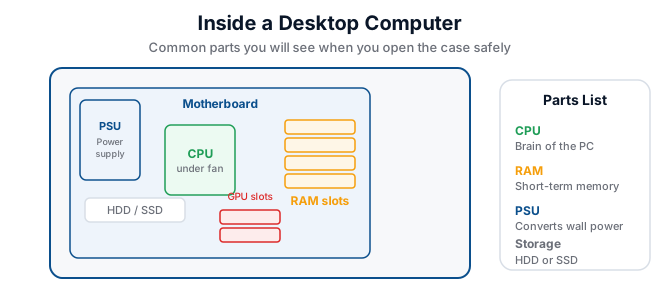
Once the side panel is off, you will see several main parts:
- The motherboard — the large flat circuit board that everything connects to.
- The CPU and its heatsink — a small chip under a metal block with a fan on top.
- RAM modules — long thin circuit boards standing upright in slots.
- The storage drive — a boxy hard disk or a small flat solid-state drive.
- The power supply unit (PSU) — a metal box with many cables, usually at the top or bottom rear.
- Expansion cards — such as a graphics card or network card, plugged into slots on the motherboard.
Worked Example: Identifying Parts on a College Computer
Mary is asked to name the parts inside a desktop at Edutrack College. She follows the safety steps, removes the side panel, and writes down what she sees. She notes the CPU fan spinning freely, two RAM sticks labelled 4 GB each, a 500 GB hard drive, and a PSU labelled 450 W. She also sees a small graphics card because the monitor cable plugs into the back of it rather than the motherboard. Her instructor checks her list and confirms every item.
Try It Yourself
- Find a desktop computer that you are allowed to inspect. Shut it down and unplug the power cable.
- Remove the side panel and lay it aside carefully.
- Point to the motherboard, CPU heatsink, RAM sticks, storage drive, and PSU.
- Count the RAM sticks and read the capacity printed on each label.
- Replace the side panel and screws before plugging the computer back in.
Key Terms
- Chassis — the metal frame and case that hold all computer components.
- Motherboard — the main circuit board that connects the CPU, RAM, storage, and other parts.
- PSU — Power Supply Unit; converts mains electricity to the low voltages needed inside the computer.
- Anti-static — measures that prevent static electricity from damaging sensitive electronic parts.
- Expansion card — a circuit board added to the motherboard to add features such as better graphics.
Summary
Opening a computer safely is the foundation of hardware repair. Always shut down, unplug, and discharge static before removing the side panel. Inside the case you will find the motherboard, CPU, RAM, storage, PSU, and expansion cards. Learning to identify these parts by sight lets you diagnose problems faster and speak confidently to customers who need their machines fixed.